
Indian service businesses are seeing Local Services Ads appear more often on searches that matter, from plumbers near me to divorce lawyer in Delhi. If you are evaluating Local Services Ads in India, this guide gives you a practical playbook, setup steps, verification checklists, and proven tips to dispute bad leads so you only pay for real opportunities.
What are Local Services Ads, and how are they different from Google Ads?
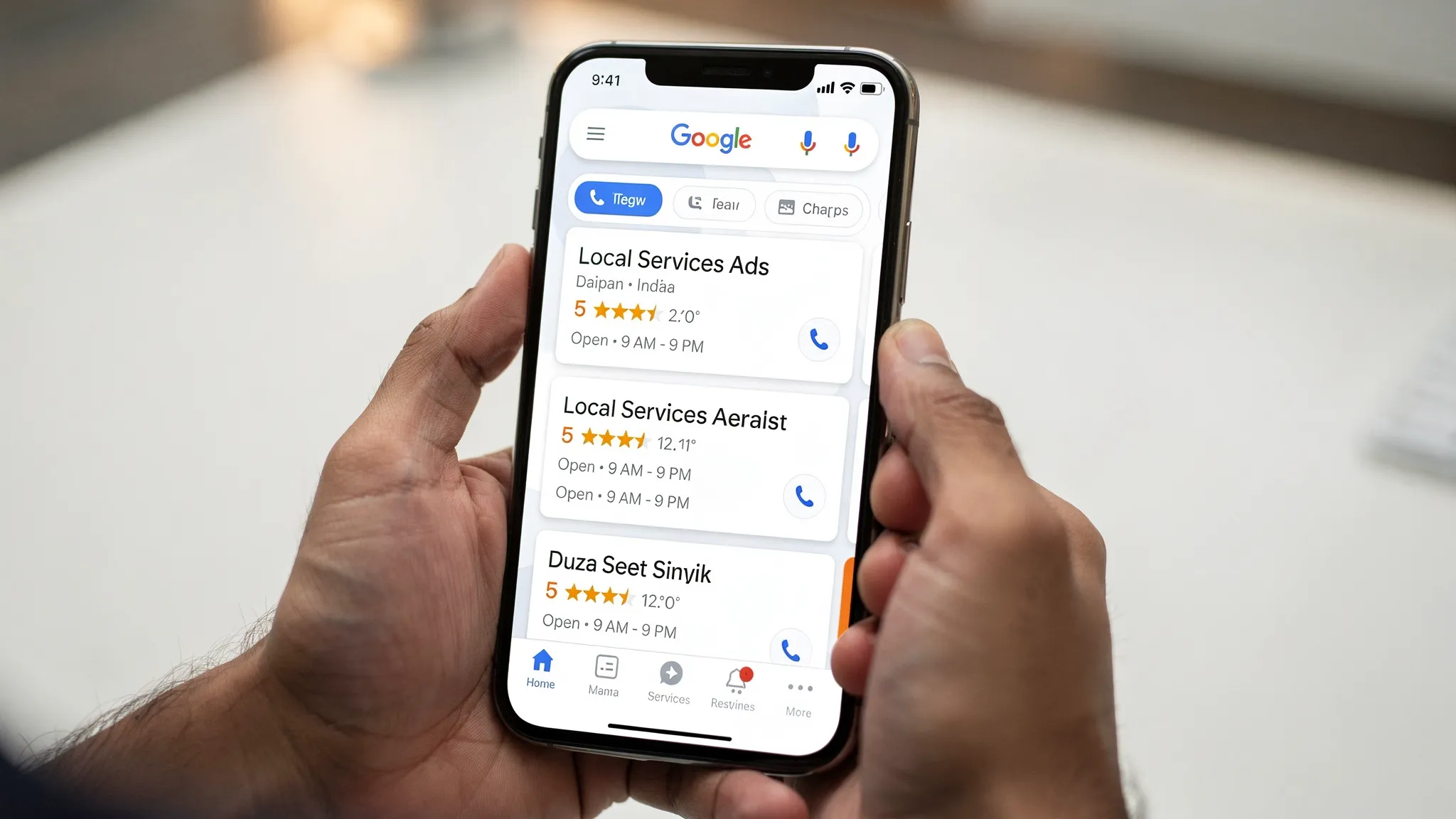
Local Services Ads (LSAs) are pay per lead placements that sit at the very top of Google Search for eligible service categories. You are charged for qualified calls or messages, not for clicks. Ranking depends on your review score, proximity, responsiveness, budget and category eligibility, not on keywords or Quality Score like standard Google Ads.
Key distinctions:
- You pay per lead, not per click.
- Ads are profile based, you select services and service areas instead of keywords.
- Reviews, verification status, responsiveness and proximity strongly influence visibility.
- Leads arrive as tracked calls or messages inside the LSA app or dashboard.
Learn more from Google’s official resources: Local Services Ads Help Center and the product page at ads.google.com/local-services-ads.
Availability in India, how to check
LSA availability varies by country, category and city. In India, rollout is gradual and can differ by metro and vertical. Before you plan budgets, check eligibility for your business type and location using Google’s LSA signup flow on the product page above. If your category or city is not supported yet, you will be notified during onboarding. In the meantime, you can prepare your profile and reviews, or use alternatives we list later in this guide.
Prerequisites you should line up in India
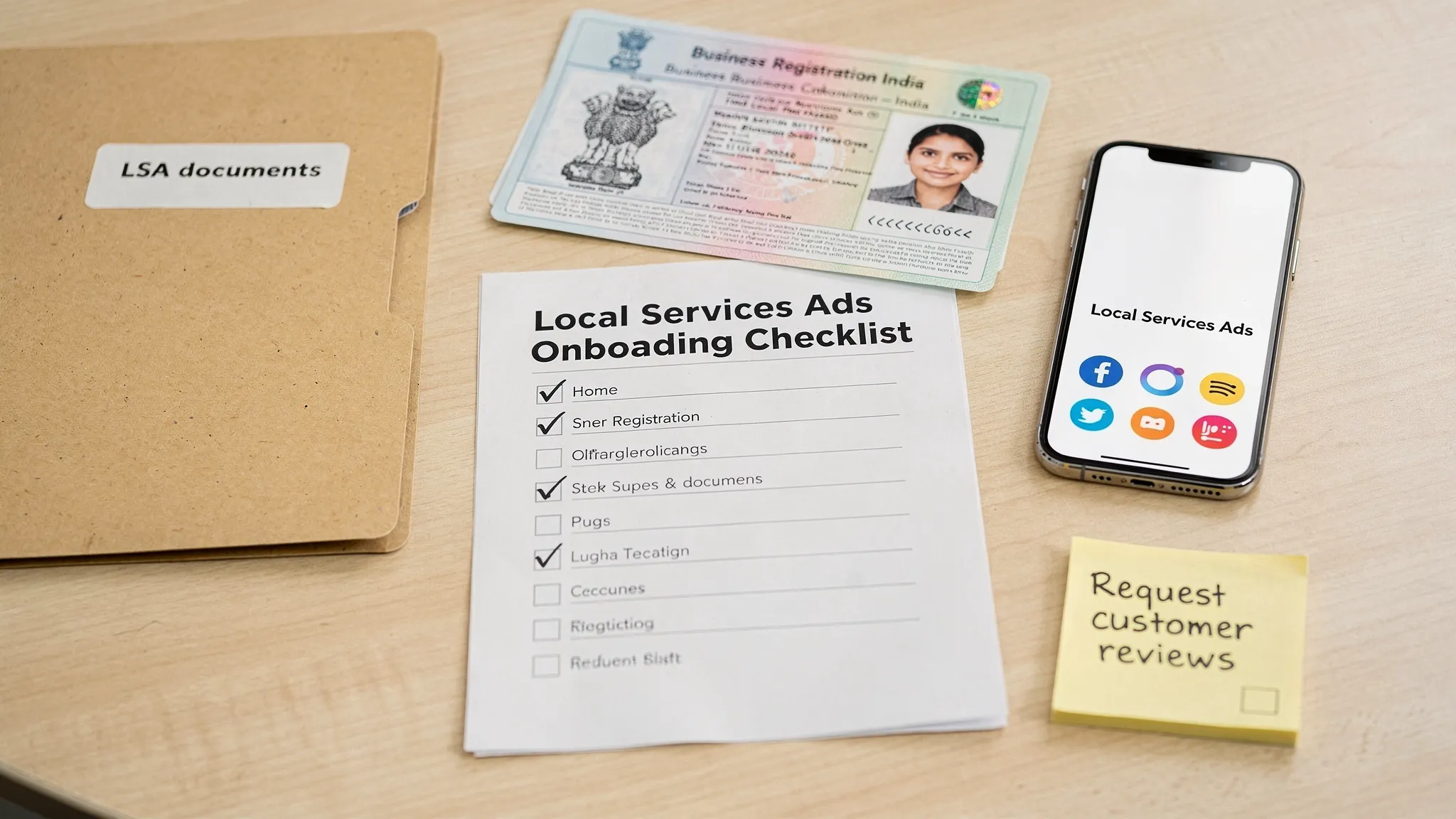
Having documentation and assets ready speeds up verification and reduces back and forth. Be prepared with:
- Active Google Business Profile with accurate NAP (name, address, phone) and recent reviews. See Google Business Profile Help.
- Proof that you operate legally in India. Typical documents Indian service businesses maintain include GST registration, Udyam certificate for MSMEs, Shops and Establishments registration or professional licenses, as applicable. Google may request different or additional proof depending on category and city.
- Insurance or professional certifications if your category requires them.
- Clear service list, service areas by PIN code, business hours and a dedicated phone line for leads.
- High quality photos of your team, office, and work outputs. Avoid generic stock images.
Note, Google may engage third party verification providers. Specific checks and document types can vary by country and vertical, so always follow the prompts you see inside the LSA dashboard.
Step by step, setting up Local Services Ads
- Confirm category and city eligibility using the product page and begin onboarding.
- Create or connect your Google account and your Google Business Profile.
- Choose your service categories and individual job types. Deselect anything you do not offer.
- Define service areas by city or PIN codes. Start with the core zones where you can respond fast.
- Set business hours, choose whether you want after hours leads, and enable messaging if you can reply quickly.
- Add team and work photos, business description and unique selling points.
- Select your bidding option. You can set a maximum price per lead or allow automated bidding to maximise leads.
- Set a weekly budget. Expect actual weekly spend to vary depending on lead volume.
- Complete verification. Upload requested documents promptly and track status.
- Request reviews from recent customers, ideally via the review request feature inside LSA where available.
Verification, Indian context and tips
Verification is what unlocks visibility and, where applicable, Google’s badges for your category. To shorten timelines and reduce rejections:
- Ensure the business name on your documents matches your Google Business Profile exactly.
- Use the same phone number across your website, Business Profile and LSA.
- Upload clear scans or PDFs, no cropped edges, with visible registration numbers and validity dates.
- If your category requires licenses or insurance, upload both the certificate and proof of validity, for example the latest premium receipt.
- If background checks are required for owners or customer facing staff, schedule them as soon as you see the prompt in your dashboard.
- Keep your service list precise. Listing jobs you do not perform can slow approval or create poor lead quality later.
If a document is rejected, review Google’s reason note in the dashboard and reupload a corrected version. If you believe the decision is an error, contact LSA support via the Help Center with your case ID.
Winning more visibility, practical optimisation levers
- Reviews and rating: Prioritise recent, high quality reviews. Use LSA’s review request tool after each completed job. Respond politely to every review.
- Responsiveness: Aim to answer within a few rings and reply to messages quickly. Mark leads as booked or completed inside the LSA app so Google sees strong outcomes.
- Service area focus: Start with high intent, nearby PIN codes. Expand only when you maintain fast response times.
- Hours: Set realistic hours. If you cannot pick up after hours, narrow your schedule rather than paying for missed calls.
- Budget and bids: If you are new, consider automated bidding for a few weeks to sample market prices, then switch to manual max per lead based on your close rate and margins.
- Profile strength: Add real work photos and a concise description that mentions your specialties and guarantees. Keep it customer oriented.
Lead quality control and exclusions
- Deselect job types you do not want. For example, a plumber can keep pipe leak repair on and turn off geyser installation if that is not offered.
- Use the “pause” control during holidays or staffing gaps to avoid paying for leads you cannot serve.
- If message leads tend to be low intent for your category, consider turning messages off and accepting calls only.
Disputing bad leads, how to protect your budget
Not every contact is billable. Google allows disputes for specific reasons. File disputes promptly from the Leads tab inside your LSA account.
Typical disputable reasons, examples and the proof that helps:
| Dispute reason | Example | Helpful proof |
|---|---|---|
| Job not offered | Caller asked for a service you did not select, for example AC installation when you only do repairs | Call recording snippet, services list screenshot |
| Outside service area | Lead was from a PIN code you do not target | Caller’s stated location in recording, your service area screen |
| Wrong business / sales call | Vendor pitching products, recruiter calls, competitor calls | Recording showing solicitation or mismatch |
| Duplicate lead | Same customer contacted twice within a short window | Two lead IDs, recordings, timestamps |
| Unconnected call / wrong number | Silent voicemail, wrong person picked | Call log showing duration, recording if any |
How to submit a dispute:
- Open the lead in the LSA dashboard or app.
- Click Dispute, choose a reason, add context and attach evidence if prompted.
- Submit and note the case ID. Most reviews are resolved within a few weeks and approved credits appear as account credits.
Good practices:
- Keep call recording enabled if the feature is available in your region and comply with consent requirements.
- Add concise, factual notes to each disputed lead.
- Review dispute outcomes monthly and refine your services list and hours to prevent repeats.
See Google’s guidance on disputes in the Local Services Ads Help Center.
Tracking ROI the right way
- Establish targets: cost per qualified lead, booking rate, cost per booked job, and revenue per job.
- Tag every lead outcome inside the LSA app, booked, completed, not a fit. This feedback helps both optimisation and future dispute credibility.
- Compare LSA performance with Search Ads, Performance Max and organic leads to allocate budget where it works best.
If LSAs are not yet available in your city or category
You still have strong options to capture local intent:
- Google Search Ads with call extensions and call only campaigns for high intent queries.
- Performance Max for lead generation with location targeting and call tracking.
- Local SEO, strengthen your Google Business Profile, review velocity, and Map Pack rankings.
- Landing pages tuned for each service and city, fast, mobile first and with prominent call CTAs.
For a refresher on how paid and organic work together, read our explainer on SEO vs SEM: Understanding the Differences.
A realistic launch timeline
- Week 1: Eligibility check, profile setup, documents gathered, photos added.
- Weeks 1 to 3: Verification review, background checks if required, edits based on Google feedback.
- Week 3 onward: Go live, collect early reviews, adjust bids and services based on lead quality.
Your exact timing depends on your category and the verification steps Google applies in your region.
Common pitfalls to avoid
- Selecting all services or too wide a service area, this inflates poor fit leads and dispute effort.
- Inconsistent business name or phone across your website, Business Profile and LSA.
- Leaving message leads on without a plan to respond fast.
- Uploading stock photos or low quality images that do not build trust.
- Not marking outcomes in the LSA app, which can hurt ranking and future dispute success.
How Gilead Digital can help
Gilead Digital is a Chennai based digital marketing agency experienced in lead generation for local and multi city service brands. We help with:
- End to end LSA onboarding, profile setup, documentation guidance and verification follow through.
- Review generation workflows and response playbooks to boost ranking.
- Budgeting and bid strategy, lead quality controls, and monthly dispute management.
- Integrated Google Ads, Local SEO and landing page optimisation when LSA is unavailable in your area.
If you want a clean, compliant setup and fewer wasted rupees on unqualified calls, talk to us. Call 9003116482 or reach us at Gilead Digital.
Sources and further reading:
- Google, Local Services Ads Help Center, policies, setup and disputes, support.google.com/localservices
- Google, Local Services Ads product overview, ads.google.com/local-services-ads